Git & Version Control
Essential Git Commands Every Developer Uses in 2026
By Yahya Saeed · 5 min read · 86 views
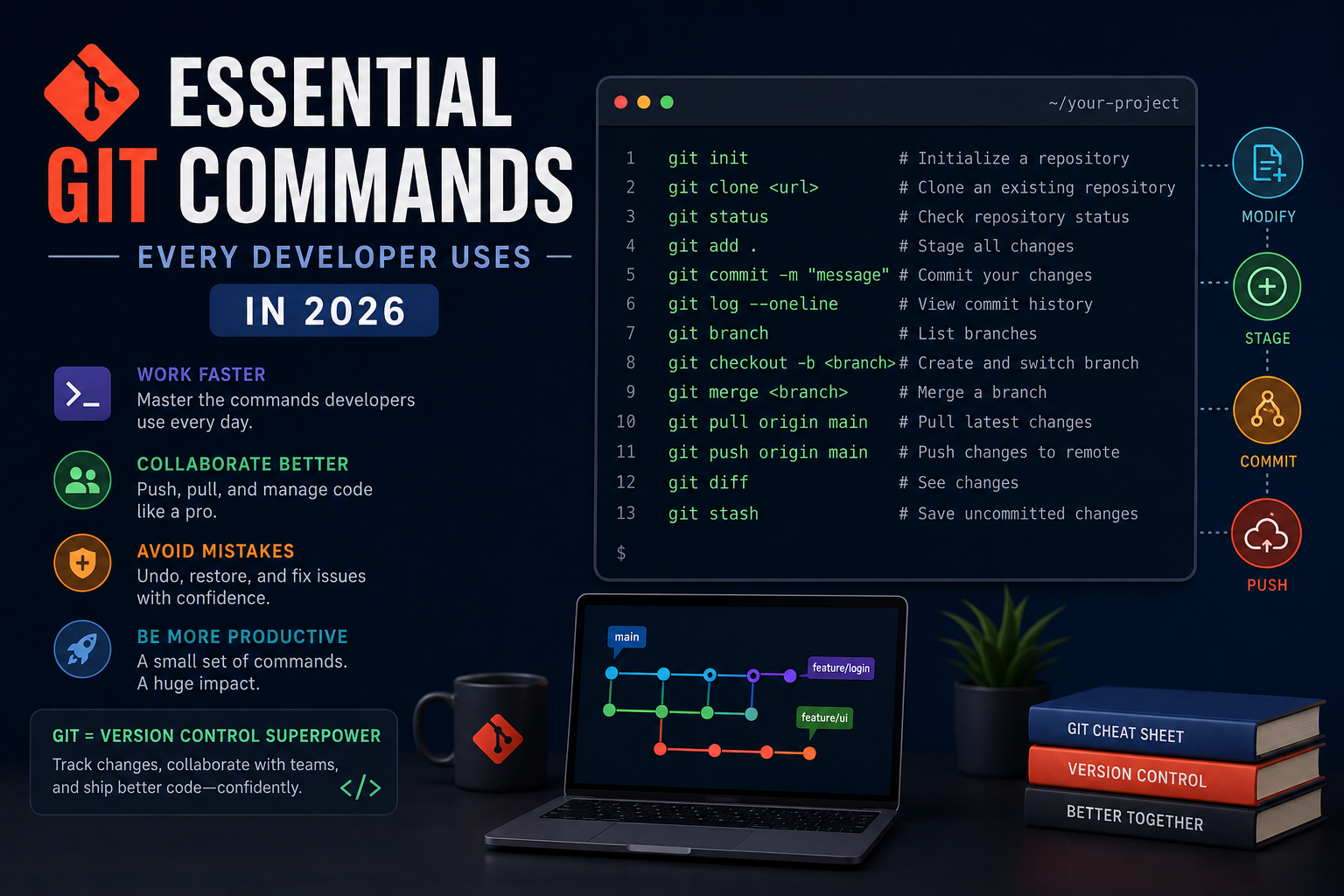
Essential Git Commands Every Developer Uses in 2026
If you've ever lost code, struggled with merge conflicts, or accidentally pushed something you shouldn't have, you're not alone.
Git can feel intimidating at first because it has hundreds of commands and countless workflows. The good news? Most professional developers use the same small set of commands every day.
Learning these essential Git commands will make you more productive, improve collaboration, and give you the confidence to manage projects of any size.
Let's dive into the commands every developer should know.
1. Initialize a Repository
Start tracking a project with Git:
git initThis creates a new Git repository inside your project folder.
Use it when starting a brand-new project.
2. Clone an Existing Repository
Download a project from GitHub or another Git server:
git clone https://github.com/username/project.gitThis copies the complete project history to your computer.
3. Check Repository Status
Probably the command you'll use the most:
git statusIt tells you:
Which files changed
Which files are staged
Which files are untracked
Whether you're ready to commit
Get into the habit of running this frequently.
4. Stage Changes
Add files to the next commit.
Stage a specific file:
git add index.jsStage everything:
git add .Remember: git add doesn't save changes—it prepares them for committing.
5. Commit Your Work
Save a snapshot of your staged changes:
git commit -m "Add user authentication"Write meaningful commit messages that describe what changed.
Good commit messages make project history much easier to understand.
6. View Commit History
See previous commits:
git logFor a shorter version:
git log --onelineThis is useful for reviewing project history or finding a previous commit.
7. Create and Switch Branches
Create a new branch:
git branch feature/authSwitch to it:
git checkout feature/authOr create and switch in one command:
git checkout -b feature/authModern Git also supports:
git switch -c feature/authWorking on branches keeps your main codebase safe.
8. See Available Branches
command to see available branches:
git branchThe active branch appears with an asterisk (*).
9. Merge a Branch
After finishing a feature, merge it into your main branch:
git merge feature/authGit combines the changes while preserving history.
10. Push Changes to GitHub
Upload commits to the remote repository:
git push origin mainOr push another branch:
git push origin feature/authYour teammates can now access your latest work.
11. Pull the Latest Changes
Download updates from the remote repository:
git pull origin mainAlways pull before starting work to reduce merge conflicts.
12. Fetch Without Merging
Retrieve remote changes without applying them immediately:
git fetchThis lets you inspect incoming changes before merging them.
13. See File Differences
View what changed:
git diffCompare staged changes:
git diff --stagedThis helps you review code before committing.
14. Undo Staged Changes
Remove a file from the staging area.
git restore --staged index.jsYour file remains unchanged—you've simply unstaged it.
15. Restore File Changes
Discard local modifications:
git restore index.jsUse this carefully, as uncommitted changes will be lost.
16. Rename the Current Branch
Useful when renaming master to main or correcting branch names:
git branch -M main17. Remove a Branch
Delete a local branch:
git branch -d feature/authForce delete if necessary:
git branch -D feature/auth18. Check Remote Repositories
command to check remote repositories:
git remote -vThis displays the remote URLs connected to your project.
19. Add a Remote Repository
Connect your project to GitHub:
git remote add origin https://github.com/username/project.git20. Stash Temporary Work
If need to switch tasks without committing:
git stashRestore your work later:
git stash popStash is perfect for quickly saving unfinished work.
21. View Current Configuration
If need and want to view current configuration:
git config --listConfigure your identity:
git config --global user.name "Your Name"
git config --global user.email "you@example.com"
Every developer should set these before making commits.
22. Inspect a Specific Commit
View detailed information about a commit:
git show <commit-hash>This displays the files changed and the exact code differences.
23. Reset to a Previous Commit
Move your branch back to an earlier commit:
git reset --soft HEAD~1Or discard the latest commit completely:
git reset --hard HEAD~1Be cautious with --hard, as it permanently removes uncommitted work.
24. Revert a Commit
Create a new commit that undoes a previous one:
git revert <commit-hash>Unlike reset, this keeps project history intact and is safer for shared repositories.
25. Ignore Unwanted Files
Create a .gitignore file to exclude files from version control.
Example:
node_modules/
.env
.next/
dist/
coverage/
Never commit sensitive files like .env or unnecessary folders like node_modules.
A Typical Git Workflow
Most developers follow a workflow similar to this:
git pull
git checkout -b feature/new-feature
git status
git add .
git commit -m "Implement new feature"
git push origin feature/new-feature
After opening a pull request and getting approval:
git checkout main
git pull
git merge feature/new-feature
git push origin main
This simple workflow works well for personal projects, teams, and open-source contributions.
Git Best Practices
Follow these habits to keep your repositories clean:
Commit small, focused changes.
Write clear and descriptive commit messages.
Pull before you push.
Use feature branches for new work.
Never commit passwords, API keys, or
.envfiles.Review your changes with
git diffbefore committing.Keep your
mainbranch stable and production-ready.
Final Thoughts
Git isn't just another developer tool—it's the foundation of modern software development.
You don't need to memorize every Git command. Master the essentials, use them consistently, and build projects regularly. Over time, these commands will become second nature.
Whether you're working on a personal portfolio, contributing to open source, or collaborating with a large engineering team, Git gives you the confidence to experiment, recover from mistakes, and maintain a reliable history of your code.
The best developers aren't the ones who never make mistakes—they're the ones who know how to recover quickly. Git makes that possible.
Keep reading
Related Posts
Developer Tools
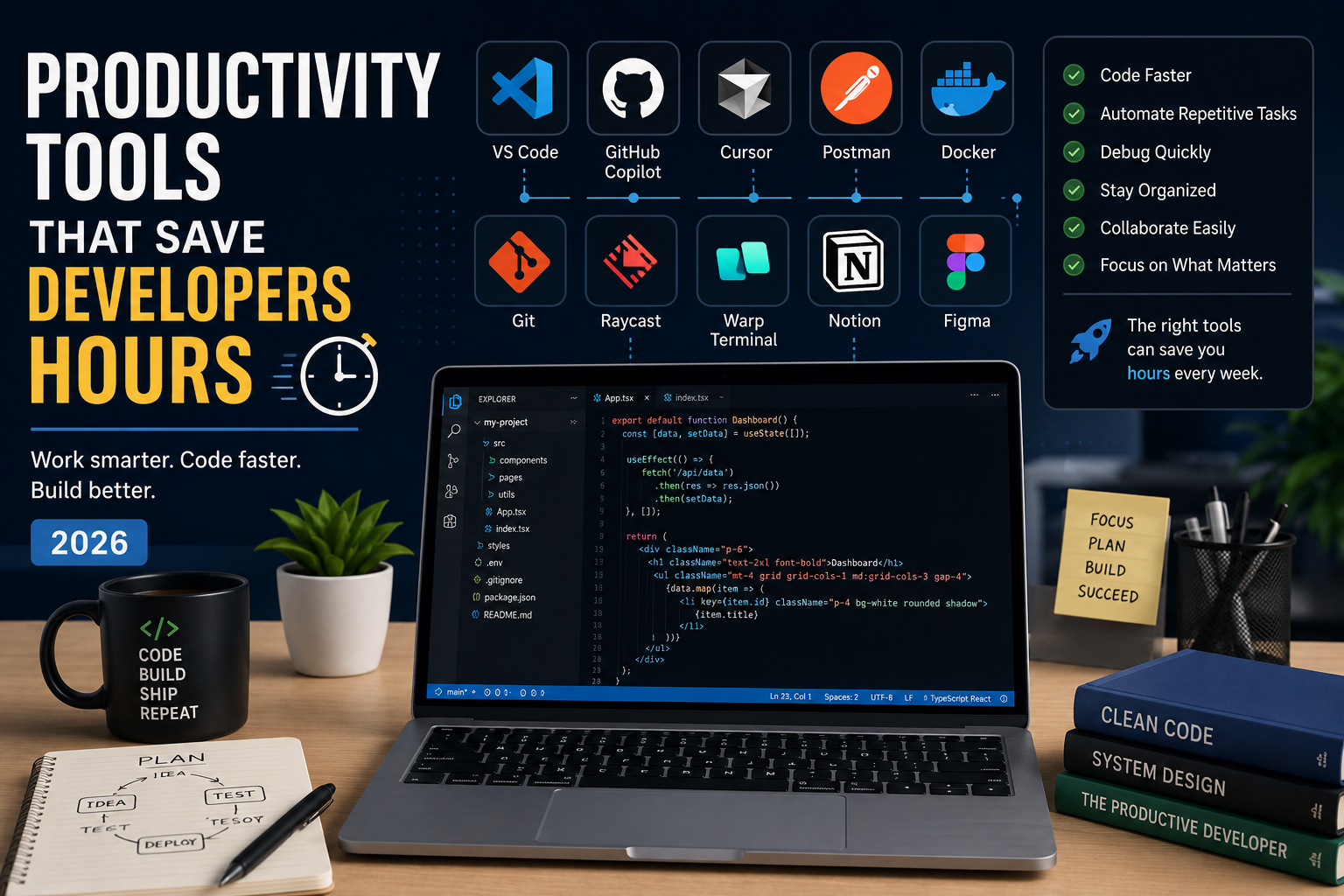
Productivity Tools That Save Developers Hours in 2026
The best developers aren't just fast—they use the right tools. From AI coding assistants to terminal upgrades and API testing platforms, these productivity tools can save developers hours every week and help them focus on building great software instead of repetitive tasks.
4 min read · 681 views

Career & Technology
The Most Valuable Skills to Learn in the AI Era (2026 and Beyond)
Artificial Intelligence is changing how we work, learn, and build products. Some skills are becoming less valuable, while others are becoming more important than ever. If you want to stay relevant and thrive in 2026 and beyond, these are the skills you should focus on developing.
4 min read · 331 views

Programming
Vibe Coding vs Learning to Code: Which Path Will Take You Further?
AI can build apps faster than ever, leading to the rise of "vibe coding." But does that mean learning to code is no longer necessary? Let's explore the strengths, weaknesses, and future of both approaches to discover which path offers the greatest long-term value.
4 min read · 277 views
Trending
Popular Posts
Productivity Tools That Save Developers Hours in 2026
681 views
The Most Valuable Skills to Learn in the AI Era (2026 and Beyond)
331 views
Vibe Coding vs Learning to Code: Which Path Will Take You Further?
277 views
Next.js 16 Features Every Developer Should Know in 2026
192 views
The Best Folder Structure for Next.js Projects in 2026
152 views
Comments
No approved comments yet.